Your brand’s first impression on WhatsApp is entirely visual. Before a customer reads your catalog or messages your support team, they see your profile picture and cover banner. If your logo is pixelated, your wordmark is chopped in half by a circular mask, or your banner text is hidden behind your avatar, your brand instantly looks unprofessional.
Designing for WhatsApp Business is uniquely frustrating for brand managers and graphic designers. The platform aggressively compresses images, forces square uploads into circular UI elements, and provides very little official documentation on exact pixel dimensions.
This guide cuts through the guesswork. Below, you will find the practical, tested specifications for WhatsApp Business profile pictures, cover banners, and catalog images, along with the exact safe-zone rules you need to protect your brand assets.
Are Business and Personal Sizes Different?
The short answer is no.
Under the hood, Meta uses the exact same image processing engine for both WhatsApp Personal and WhatsApp Business. Both account types require a 1:1 square upload for the profile picture, both apply a circular display mask, and both run the image through the same aggressive compression pipeline. There is no secret “high-resolution business tier” on WhatsApp's servers.
However, while the technical specifications are identical, the design requirements are vastly different. Personal users typically upload organic, centrally-weighted human faces. Businesses upload rigid, geometric brand assets like logos, wordmarks, and badges. Because typography and sharp vector edges are highly susceptible to compression artifacts and circular cropping, businesses must adhere to much stricter safe-zone and formatting rules to maintain brand integrity.
Best Business Profile Picture Size
While WhatsApp’s official Help Center cites a minimum profile image size of 192×192 pixels, uploading an image that small is a critical mistake for any business. On modern high-density smartphone screens, a 192px image will look noticeably soft and blurry, damaging brand trust.
For a crisp, professional business WhatsApp profile picture, follow these practical standards:
- Optimal Export Size: 640×640 pixels or 1024×1024 pixels. This provides enough resolution to look sharp on all devices without triggering unnecessary server-side downscaling.
- Aspect Ratio: Strictly 1:1 (Square).
- Source File: Always start with the highest-resolution vector or raster file available. Never upscale a tiny thumbnail.
By exporting at 640×640 or 1024×1024, you give WhatsApp a clean, high-quality master file, minimizing the visual damage caused by automated compression.
Logo Safe Zone Rules: The 70–80% Rule
The most common mistake brands make is designing a beautiful square logo, uploading it edge-to-edge, and watching WhatsApp chop off the corners. WhatsApp displays profile pictures inside a circular mask.
To ensure your logo is never cropped, design for the circular safe area:
- The Danger Zone (Outer 20%): The four corners of your square canvas will be entirely hidden by the UI. Never place text, icons, or vital brand elements here.
- The Safe Zone (Inner 70–80%): Keep 100% of your logotype, taglines, and critical visual elements inside the center 80% of the canvas.
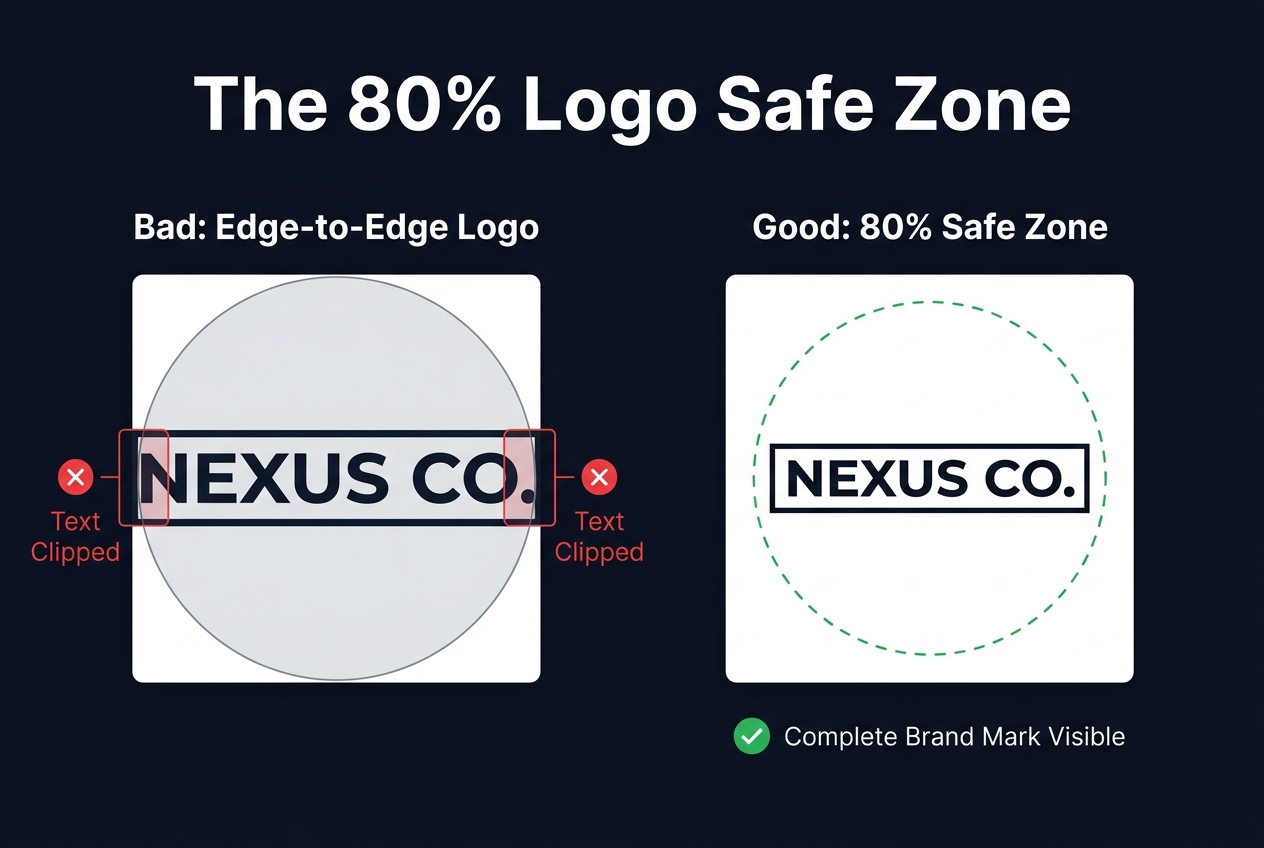
Visual comparison: Edge-to-edge logo placement gets clipped by the circle mask. Centering within the 80% safe zone guarantees complete visibility.
What gets cut if you ignore this?
- Circular Badges: If your logo is a badge with text wrapping the outer rim, the top and bottom letters will be sliced off.
- Asymmetrical Icons: If your icon leans to the left or right, the edge will be clipped by the circle.
- Wide Wordmarks: A horizontal company name will either be zoomed in until the edges bleed off the screen, or shrunk down until the text is illegible. (If you must use a wide wordmark, use full photo mode for wordmarks to fit it safely inside the circle with a blurred background).
WhatsApp Business Banner Size (Cover Photo)
Unlike the profile picture, Meta does not publish a single, universally pixel-perfect official specification for the WhatsApp Business cover photo (banner). The display area shifts slightly depending on the device (iOS vs. Android) and screen aspect ratio.
However, based on extensive cross-device testing, the most reliable practical standard for the WhatsApp business banner size is:
- Recommended Dimensions: 1125 × 600 pixels (or 1080 × 600 pixels).
- Aspect Ratio: Roughly 15:8.
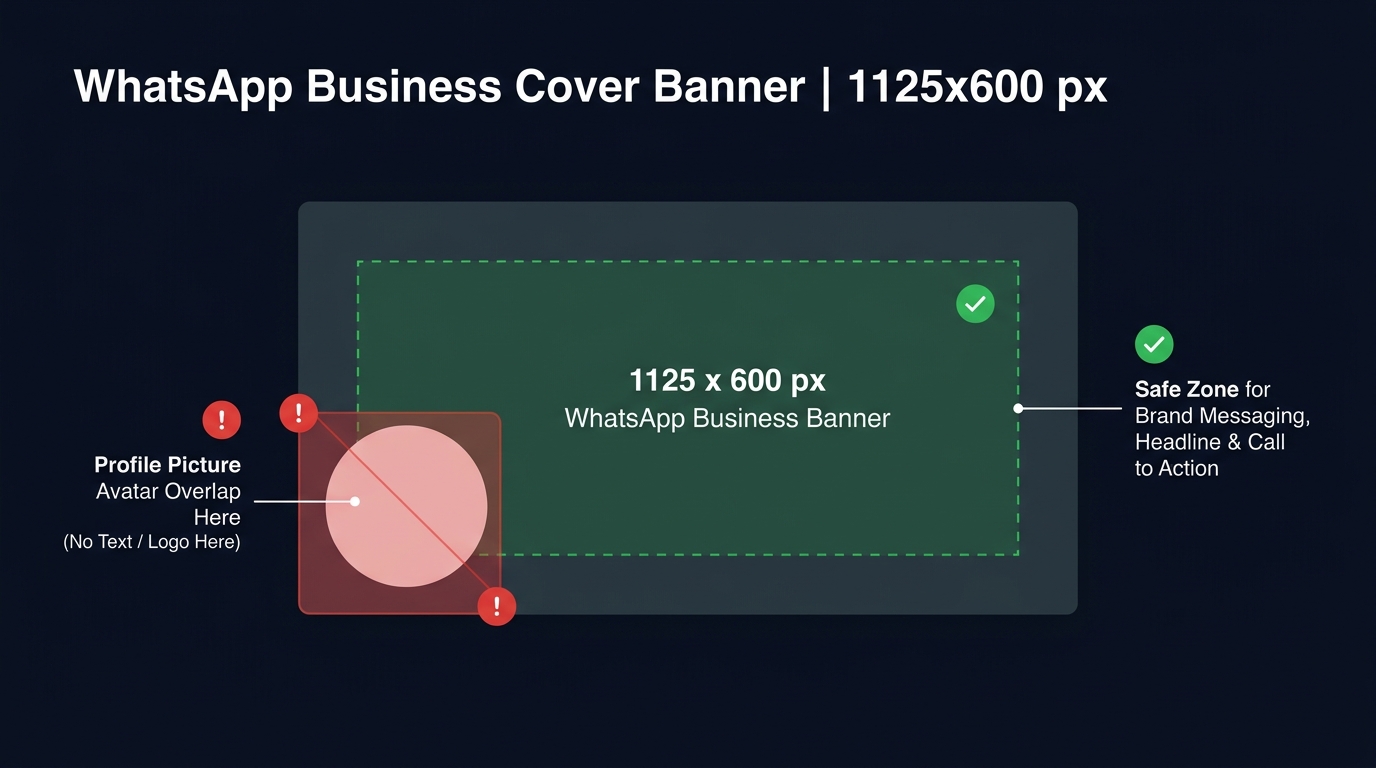
Banner safe zone diagram: The circular profile avatar covers the bottom-left area of the 1125x600 banner. Keep messaging in the center and right.
⚠ The Critical Overlap Warning
Your profile picture overlaps the bottom-left corner of your banner. Do not place text, logos, or calls-to-action in the bottom-left quadrant of your banner. It will be hidden behind your profile avatar. Keep all vital brand messaging and visual focal points in the center and right side of the banner canvas.
WhatsApp Business Asset Comparison Table
Use this cheat sheet when handing off assets to your social media or design team:
| Asset Type | Recommended Size | Aspect Ratio | Best Format | Safe Zone Rule |
|---|---|---|---|---|
| Profile Picture (DP) | 640×640 or 1024×1024 | 1:1 (Square) | PNG | Center 80% (Circular Mask) |
| Cover Photo (Banner) | 1125×600 | ~15:8 | JPG / PNG | Center & Right (Avoid bottom-left overlap) |
| Catalog Product Image | 1024×1024 | 1:1 (Square) | JPG | Center 90% (Square display) |
| Status Update | 1080×1920 | 9:16 (Vertical) | JPG / MP4 | Keep text away from top/bottom UI overlays |
Format Guide: PNG vs. JPG vs. WebP for Brand Assets
Choosing the wrong file format is the fastest way to ruin a crisp vector logo. Because WhatsApp applies its own compression upon upload, you must give it the right source file to begin with.
- PNG (Best for Logos & Typography): If your brand asset contains sharp edges, solid blocks of color, or text, always export as PNG. PNG is lossless. It prevents the “ringing” or “ghosting” artifacts (fuzzy pixel halos) that appear around text when compressed. For a deep dive into why this happens, read our guide on how PNG avoids ringing artifacts during platform compression.
- JPG (Best for Photography): If your profile picture or banner is a lifestyle photograph, a complex gradient, or a picture of your storefront, use JPG. Set the quality to around 90% to balance sharpness with file size.
- WebP: A highly efficient modern format that offers smaller file sizes than JPG at equal visual quality. It is an excellent choice for catalog images, though PNG remains the safest bet for pure vector logos.
4 Common Business DP Mistakes to Avoid
- Uploading a Horizontal Wordmark Directly: If you force a wide, rectangular company name into a square crop, WhatsApp will zoom in and chop off the first and last letters. Always use a stacked logo, an icon, or a fitted blur-background layout.
- Using JPG for Vector Logos: Saving a sharp, flat-color logo as a JPG introduces compression noise around the edges. Always use PNG for brand marks.
- Ignoring the Banner Overlap: Designing a beautiful banner with your website URL in the bottom left corner, only to realize the profile picture covers it completely once uploaded.
- Edge-to-Edge Square Logos: Assuming that because your logo is a square, it will display as a square. WhatsApp’s circular UI mask will always clip the corners. Use a WhatsApp DP adjuster to preview the circular crop before uploading.
Frequently Asked Questions
The best business DP is a 640×640 or 1024×1024 pixel square image exported as a PNG. The logo or brand mark must be centered, with all critical elements kept inside the middle 80% of the canvas to survive WhatsApp's circular display mask.
Open your WhatsApp Business app, go to Settings > Business Profile, and tap the camera icon on your profile picture. Upload a pre-formatted square PNG or JPG. Ensure your logo is centered so the circular crop doesn't cut off any edges.
While Meta doesn't publish a single official pixel dimension, the most reliable practical standard for the WhatsApp Business cover photo is 1125 × 600 pixels. Always keep vital text and logos in the center and right side to avoid the profile picture overlap in the bottom left.
Yes, you can upload a PNG with a transparent background. However, WhatsApp will automatically fill the transparent areas with the user's default theme color (usually white or dark grey). It is usually safer to export your logo with your specific brand color as the solid background.
Stop guessing your logo dimensions
Create a WhatsApp Business DP that is perfectly sized, centered, and formatted in seconds.
Create WhatsApp Business DP →