TL;DR
- WhatsApp always compresses: Every profile photo upload is downscaled and re-encoded before it is stored on servers — on both iOS and Android.
- iPhones add a conversion step: Photos captured in HEIC must be converted to JPEG before upload, adding an extra generation of compression.
- Android is fragmented: Thousands of camera APIs and device chipsets handle in-app image buffers differently, producing inconsistent output.
- The fix is pre-formatting: Upload a pre-sized square (640–1024 px) at ~90% quality via DP Sizer, leaving WhatsApp minimal room for destructive recompression.
You’ve probably seen it happen: the exact same profile photo looks crisp on your friend’s iPhone but soft and smudgy on your Android — or the other way around. This isn’t your imagination. WhatsApp processes images differently depending on the mobile platform, device hardware, and file format you start from.
This article breaks down what actually happens to your profile picture (DP) when you upload it on iOS versus Android, why double compression is the true enemy of image clarity, and how pre-exporting with the correct dimensions and format eliminates the problem entirely.
Why WhatsApp Compresses Images at All
Before blaming mobile operating systems, it helps to understand the underlying infrastructure requirements. WhatsApp serves over two billion active users globally, many on constrained network bandwidth or budget mobile data plans. Every avatar synced across millions of chat headers and contact cards costs server bandwidth and storage.
Aggressive automated compression is how a 12-megapixel smartphone camera capture (often 4–8 MB) becomes a lightweight thumbnail that loads instantaneously on a 3G network. The problem for profile pictures isn’t compression itself — it’s uncontrolled secondary compression. When WhatsApp receives an oversized raw photo, its server pipeline dictates interpolation sharpness, compression ratio, and color subsampling without user control.
The iOS Pipeline: Consistent, but With a Conversion Tax
iPhones benefit from closed hardware uniformity — every iOS device operates with known color profiles, Retina display scales, and standardized CoreGraphics image pipelines. This makes WhatsApp’s iOS output predictable, but iOS introduces distinct quality hazards:
1. The HEIC → JPEG Conversion Step
Modern iPhones save camera photos in HEIC (High Efficiency Image Container) by default. Because WhatsApp’s profile picture storage pipeline expects standard JPEG/WebP streams, the HEIC container must be transcoded before upload. Every format transcode is a lossy re-encode that discards high-frequency detail. By the time WhatsApp’s servers compress the photo a second time, it has already endured generation loss.
2. iCloud Storage Optimization Previews
When “Optimize iPhone Storage” is active in iOS settings, full-resolution originals remain in iCloud while your device retains a downsampled local preview. Selecting a photo before iCloud finishes fetching the full-res original often uploads a blurry low-res proxy — one of the most frequent reasons iPhone users end up with an unexpectedly soft DP.
3. Uniform Downscaling
Once uploaded, WhatsApp scales the square image toward its standard profile working resolution (typically 640×640 max) and recompresses to JPEG. Because iOS hardware is uniform, results are consistent, but detail is permanently lost if the source wasn’t prepared properly.
The Android Pipeline: Fragmentation Is the Quality Killer
Android’s versatility across thousands of smartphone models is simultaneously its biggest challenge for visual consistency.
1. Variable Camera API Pipelines
Unlike iOS, Android devices run diverse custom manufacturer skins (One UI, MIUI, ColorOS), distinct image signal processors (ISPs), and different Camera2 API implementations. WhatsApp’s Android client must adapt to broad hardware configurations, meaning the same photo can undergo slightly different memory buffering and downsampling routines depending on the device.
2. Legacy In-App Camera Captures
Historically, capturing a photo directly inside WhatsApp on certain Android devices pulled frames from the live viewfinder display stream rather than firing a dedicated hardware sensor capture. While recent versions improved this via CameraX integrations, taking profile photos from the phone’s default Camera app and selecting from Gallery remains far sharper.
3. Media Upload Settings vs. Profile Pictures
Under Settings → Storage and data → Media upload quality, Android users can toggle between “Standard” and “HD”. It is important to note: this setting only governs chat attachments. Profile pictures bypass chat settings entirely and pass through a dedicated avatar pipeline that always applies compression.
The Real Enemy: Double Compression & Generation Loss
Whether uploading from iOS or Android, the primary cause of smudgy avatars is generation loss. Lossy codecs like JPEG and WebP discard subtle color gradients and micro-textures on every save cycle.
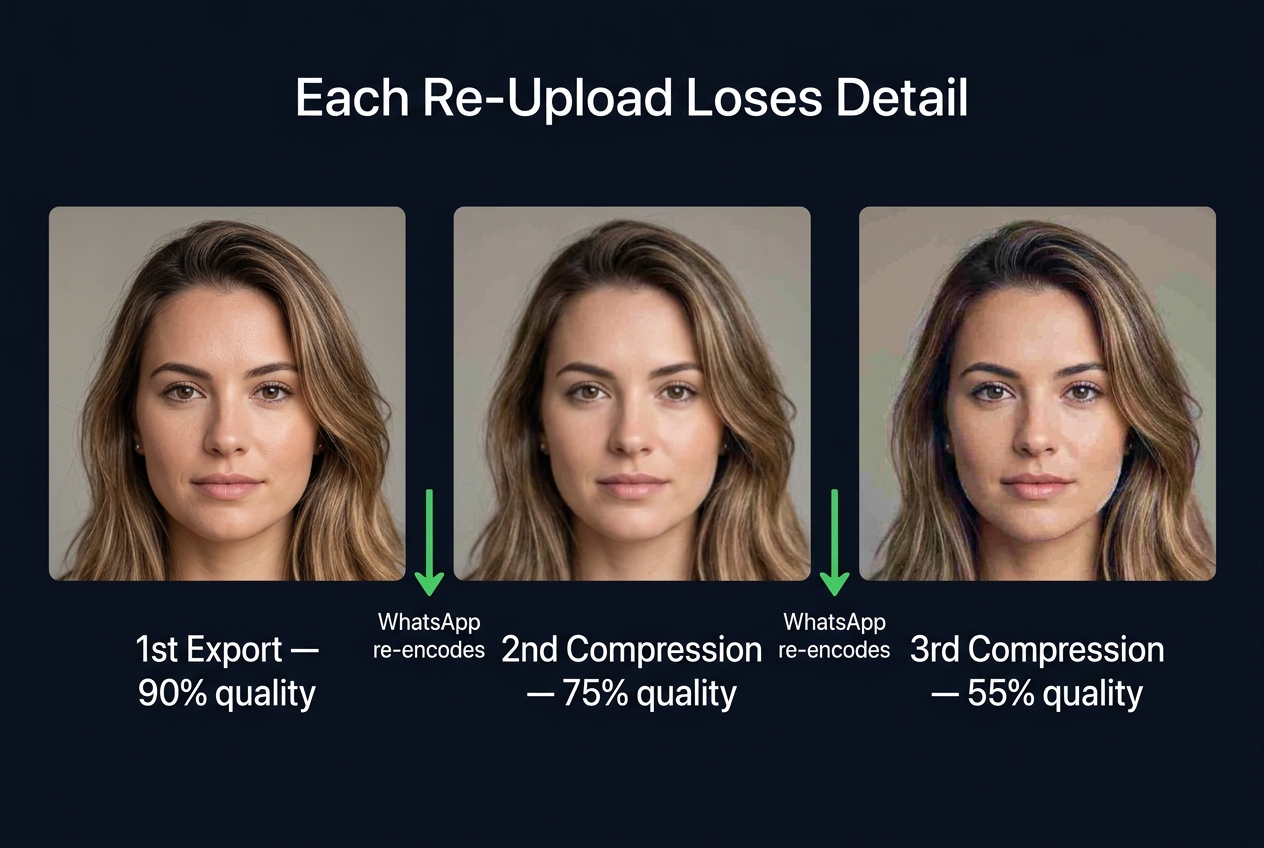
Visual comparison: Each subsequent re-encode introduces visible blocking, edge ringing, and color banding across facial features.
When you take a photo that was already compressed by social apps or screenshot tools and upload it, WhatsApp recompresses it again. The cumulative artifacts include:
- Macroblocking: Flat background areas and skin tones develop noticeable pixel squares.
- Ringing artifacts: Fuzzy halos form around high-contrast edges (hair strands, jawlines, brand logos).
- Color banding: Smooth light gradients break into coarse color bands.
This is why an image exported once at 640×640 at 90% quality consistently looks cleaner on WhatsApp than an unedited 4K photo compressed repeatedly.
How DP Sizer Neutralizes Compression Loss
While no tool can bypass WhatsApp’s internal server rules, DP Sizer eliminates the variables that make compression destructive:
1. Target Pre-Sizing (512 / 640 / 1024 Presets)
By pre-scaling your image in the browser with high-quality bicubic resampling to 512×512, 640×640, or 1024×1024, WhatsApp’s server doesn’t need to perform coarse downscaling, minimizing distortion.
2. The ~90% Quality Sweet Spot
DP Sizer’s client-side export slider lets you set quality to ~90%. This produces a visually lossless file under 300 KB — light enough that WhatsApp’s automated algorithms apply minimal additional compression.
3. Selecting the Ideal File Format
| Photo Type | Recommended Format | Key Advantage |
|---|---|---|
| Selfies & Portraits | JPG (90% quality) | Smooth skin tones, universal platform acceptance |
| Brand Logos & Text | PNG | Zero edge ringing, perfect sharp typography |
| General Photos (Lightweight) | WebP (90% quality) | 25–35% smaller file sizes at identical sharpness |
| Transparent Badges | PNG | Preserves alpha channel transparency |
4. HEIC Transcode Bypass for iOS
When you drop an iPhone photo into DP Sizer, your browser immediately converts it to a clean JPG or WebP canvas locally. Your iPhone never triggers an on-the-fly HEIC conversion during the WhatsApp upload process.
5. 100% Private Browser-Based Execution
All resizing and quality rendering happen locally inside your browser via the HTML5 Canvas API. Your personal photographs are never sent to external servers for conversion. Learn more in our privacy and local processing guide.
Platform-Specific Checklist
iPhone Users
- Check that iCloud has downloaded the full-resolution original before editing.
- Convert HEIC photos to standard JPG/WebP via DP Sizer.
- Export at 640×640 square at ~90% quality.
🤖 Android Users
- Always select photos from Gallery; avoid in-app WhatsApp camera snapshots.
- Use WebP for the smallest footprint or PNG for company logos.
- Export square with faces centred inside the safe zone.
Read Next
Explore how WhatsApp DP resolution standards evolved from 192px to today.
Frequently Asked Questions
Yes. Every profile photo is downscaled and re-encoded before storage, regardless of whether you upload from an iPhone or an Android phone. Pre-formatting ensures WhatsApp’s algorithms have minimal detail left to alter.
Android’s extensive hardware and API fragmentation can cause variable downsampling between device brands, while iOS forces an on-the-fly HEIC-to-JPEG conversion. Either step can degrade visual clarity if you do not export a pre-formatted square file first.
HEIC offers excellent storage efficiency on Apple devices, but because WhatsApp requires standard JPEG streams, uploading a HEIC file forces an automatic conversion. Running the photo through DP Sizer gives you a clean JPEG or WebP directly.
Around 90% is the recommended sweet spot. It preserves subtle facial details and smooth skin tones while keeping file size compact, avoiding aggressive secondary server compression.
WebP gives approximately 25–35% smaller file sizes at identical visual fidelity. JPG is the universal standard for photographic portraits, while PNG is optimal for vector logos and typography. See our detailed JPEG vs PNG comparison guide.
No. WhatsApp’s “HD” or “Best quality” media upload setting only applies to images and media sent inside chat threads. Profile pictures are routed through a separate profile service that compresses all uploads uniformly.
Transparency & Sources
- WhatsApp Help Center: Profile photo guidelines and media management.
- Platform differences reflect observed technical behavior across iOS CoreGraphics and Android Camera2/CameraX pipelines.
- DP Sizer is an independent browser-based utility not affiliated with WhatsApp or Meta Platforms, Inc.